Showing posts with label windows tips. Show all posts

November 17, 2008

MENGGANTI TEXT PADA XP START BUTTON

1. Pengantar
Biasanya penulis selalu membuat artikel mengenai pemograman dengan Vb.Net. Kali ini sangat berbeda, artikel ini mengenai seputar tip dan trik windows (XP). Diantara kita pasti mempunyai sifat atau rasa bosan dengan apa yang kita liat setiap hari (tidak termasuk pasangan ya… J). Dengan adanya rasa itu menurut penulis ada sisi positifnya (terutama dari segi IT). Hal itu membuat kita semakin sering berkreasi. Seperti pada artikel ini, karena setiap hari kita selalu bertemu dengan kata yang bernama “Start” itu membuat kita ingin mengubah kata tersebut menjadi dengan kata yang kita sukai. Mari ikuti trus artikel ini… Semoga bermanfaat…
2. Melakukan perubahan pada file explorer.exe
File explorer.exe terletak pada directory C:\Windows. Dan file ini lah yang akan kita ubah. Explorer.exe adalah file binary, yang memerlukan special editor untuk mengubahnya. Untuk kita membutuhkan Resource Hacker, program ini adalah freeware dan dapat didownload disini. Untuk menjaga hal-hal yang tidak di inginkan sebaiknya copy dahulu file explorer.exe di lokasi yang aman….
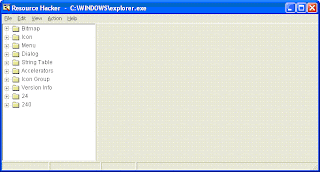
Setelah mendowload program Resource Hacker. Lalu ke menu File > Open dan cari file Exporer.exe di C:\Windows.

Setelah tampilan Resource Hacker seperti gambar diatas, perlebar tanda panah pada “String Table”. Lalu didalam folder itu ada folder lagi yaitu folder “37”, lalu perlebar lagi tanda panah pada folder tersebut. Dan didalam folder 37 itu ada string “1033”, klik string tersebut.

Ganti tulisan “start” menjadi dengan kata yang disenangi.

Dan click tombol “Compile Script“. Lalu Save As project ini. Dan Simpan didalam folder C:\Windows\inf.
Note : Jangan simpan project ini dengan perintah “Save”, tapi gunakan “Save As”.
Dan nama dari project harus tetap “explorer.exe”. Simpan project ini didalam folder yang ada pada directory C:Windows. Seperti penulis menyimpan pada folder “inf” C:\Windows\inf.


3. Modifikasi Registry
Setelah selesai menyimpan project pada Resource Hacker, sekarang saat nya kita mengubah Registry. Buka regedit dengan cara Start>Run lalu ketik “regedit” dan OK. Dan ikuti Root dibawah ini. Hingga seperti gambar dibawah.
HKEY_LOCAL_MACHINE\SOFTWARE\Microsoft\Windows NT\CurrentVersion\Winlogon

Klik ganda pada “Shell” sehingga muncul Edit String dialog seperti gambar dibawah. Pada value data ketik nama folder dimana kita menyimpan file explorer.exe yang telah di modifikasi. Lihat pada gambar dibawah, tidak perlu mengetikkan secara lengkap C:\Windows\inf\explorer.exe, tapi cukup dengan nama folder dan explorer.exe lalu klik ok


Tutup registry editor (regedit).Untuk melihat perubahan ini, restart computer anda dan lihat hasilnya.

Wassalam

Registry Tip and Trick


1. Automatically Close Programs at Shutdown
When you shut down Windows, if you have any programs running you'll get a message box warning you that a program is still running. You then have to close the program and tell XP again to shut down. It's a fairly pointless warning—better yet would be if XP automatically killed the programs without issuing the warning. That way, you wouldn't get error messages and wouldn't have to close each individual application before shutting down your computer.
To have XP automatically close programs at shutdown, run the Registry Editor and go to HKEY_CURRENT_USER\Control Panel\Desktop. Edit the AutoEndTasks key so that is has a value of 1. If the key doesn't exist, create it as a DWORD value and give it the value of 1. To disable it, either delete the key, or set the value to 0.
2. Disable XP Shutdown
There may be times when you want to make sure that XP can't be inadvertently shut down. You can use a Registry hack to disable the normal Shut Down. Run the Registry Editor and go to HKEY_CURRENT_USER\Software\Microsoft\Windows\CurrentVersion\Policies\Explorer. Create a new DWORD value named NoClose with a data value of 1. Exit the Registry and reboot in order for the change to take effect. You won't be able to shut down Windows in the normal manner from now on; you'll have to run Task Manager by pressing Ctrl-Alt-Delete or right-clicking on the Toolbar, choosing Task Manager, and then using the Task Manager's Shut Down menu to close Windows. If you want to reenable normal shutdowns, delete the NoClose value.
3. Change the Names of the Registered User and Company
When you install XP or when it comes factory-fresh on a PC, a username and company name are entered as the owner of the system. And that's the way it stays, like it or not. But a Registry hack will let you change both. Run the Registry Editor, go to HKEY_LOCAL_MACHINE\SOFTWARE\Microsoft\Windows NT\CurrentVersion, and look for the values RegisteredOwner and RegisteredOrganization. Edit their value data to whatever username and company name you want.
4. Change the Amount of Time Before Programs Time Out
When an application hangs and no longer responds, XP displays a dialog box that prompts you to kill the application or wait a while longer. By default, the dialog box appears after the application hasn't responded for five seconds.
This can cause problems. For example, if a program is doing heavy-duty calculations in the background, it won't respond until the calculation is done, so the operating system will report that the application is hung, even though it isn't. You can use a Registry hack to increase or decrease the amount of time it takes before XP reports that the program has hung.
Run the Registry Editor and go to HKEY_CURRENT_USER\Control Panel\Desktop. Select the HungAppTimeout entry and edit it to input a new value, in milliseconds. The default is 5000. Exit the Registry. You may need to reboot for the new setting to take effect. Try increasing the number in increments of 1,000 until you find a number that works.
5. Disable the Disk Cleanup Warning
If your hard disk has what XP decides is too little space left on it, the operating system will pop up a warning and recommend that you run Disk Cleanup. But you may be like me and not want a virtual nanny nagging you to clean up your mess. You can turn off the warning with a Registry hack. Run the Registry Editor and go to HKEY_CURRENT_USER\Software\Microsoft\Windows\CurrentVersion\Policies\Explorer. Create a DWORD value called NoLowDiskSpaceChecks and give it a value of 1. Exit the Registry and reboot. You can also do this by using TweakUI.
6. Change the Default Location for Installing Programs
XP uses the C:Program Files directory as the default base directory into which new programs are installed. However, you can change the default installation drive and/or directory by using a Registry hack. Run the Registry Editor and go to HKEY_LOCAL_MACHINE\SOFTWARE\Microsoft\Windows\CurrentVersion. Look for the value named ProgramFilesDir. By default, the value will be C:-Program Files. Edit the value to any valid drive or folder; XP will use that new location as the default installation directory for new programs.
7. Allow Laptops to Enter Power-Saving State (Increase the USB Polling Interval)
Some laptops' processors may not be able to enter their power-saving state, even when they're idle, because USB polling fools the processor into thinking that the laptop is active. Your system polls your USB ports once every millisecond to see whether a device is present. So, even if a device isn't present, it continues that polling. The problem is that some laptop processors won't go into their power-saving state because the constant polling makes it think that the laptop is active.
With a Registry hack, you can increase the polling interval from the default of one millisecond, letting the processor enter its power-saving state. Run the Registry Editor and go to HKEY_LOCAL_MACHINE\System\CurrentControlSet\ControlClass{36FC9E60-C465-11CF-8056-444553540000} (such as 0001, 0002, etc.), repeat the procedure and create the IdleEnable DWORD in each of them. Exit the Registry. You may need to reboot for the new setting to go into effect. You also may need to try several different values until you find one that works.

Create Folders And Files With NO Name


This trick will allow you to create files and folders without any name.
Just follow the following steps:
1. Select any file or folder.
2. Right click on it, press rename or simply press F2.
3. Press and hold the alt key. While holding the Alt key, type numbers 0160 from the numpad.
Note: Type the numbers 0160 from the numpad, that is, the numbers present on the right side of the keyboard. Don’t type the numbers which are present on top of the character keys.
4.Press Enter and the nameless file or folder will be created.
Reason: The file or folder that seems nameless is actually named with a single space.
But what if you want to create another nameless file or folder in the same directory ?
For this you will have to rename the file with 2 spaces. Just follow these steps below:
1.Select file, press F2.
2.Hold alt key and type 0160 from the numpad.
3.Release the alt key. Now without doing anything else, again hold alt key and press 0160.
4.Press enter and you will have second nameless file in the same directory.
5.Repeat step 3 to create as many nameless files or folders in the same directory.

Membuat default tampilan file/folder menjadi detail pada Windows Explorer

Mungkin sebagian para pembaca seperti saya, mengingikan tampilan file/folder pada windows explorer menjadi "Detail". Ga tau kenapa rasa nya menurut saya rapi aja file/folder keliatan nya. Bagi yang mau membuat default tampilan file/folder menjadi "Detail" ikuti langkah-langkah di bawah ini.
1. Buka windows explorer, click "View" dan pilih detail.
2. Click Tool>Folder Option>View, dan uncheck "Remember each folder's View settings".
3. Lalu klik "Apply to ALL Folders".
4. Klik Apply dan klik OKCoba tutup explorer dan buka kembali, dan kita akan melihat perubahan explorer dalam menampilkan file/folder menjadi "Detail" untuk setiap Drive maupun folder yang akan di expand..Bagi orang yang menyenangi Detail menjadi tampilan pada explorer hal ini akan sangat membantu, dikarenakan kita tidak perlu lagi mengubah-ubah tampilan folder/file setiap kali akan expand drive atau folder.
Wassalam

Mengubah Background Windows Explorer

Tentunya bagi para pengguna Windows 98, akan merasa kehilangan dengan feature untuk mengganti Background pada Windows Explore di Windows XP. Tapi jangan berkecil hati, artikel ini akan membimbing para pembaca, bagaimana mengubah background pada Windows Explore pada Windows XP.Ikuti langkah di bawah ini.
1. Buka Notepad
2. Ketik kode di bawah :
[{BE098140-A513-11D0-A3A4-00C04FD706EC}]
ICONAREA_IMAGE=Path beserta nama file
ICONAREA_TEXT=16777215
3. Simpan file ini dengan nama, desktop.ini Lalu copy file ini (desktop.ini) kedalam folder yang akan di ganti background nya.
4. Lalu Start > Run
5. Ketik Attrib +s Nama Path (Tempat disimpan file desktop.ini)
Dan klik OK eq. Attrib +s C:Att
6. Buka folder yang akan di ganti background nya. jika belum berubah tekan F5.
Note : ICONAREA_TEXT=16777215 - ini merupakan untuk mengeset warna tulisan dari file.Sekarang para pembaca juga bisa mengubah background dari windows explore sesuai dengan keinginan pembaca,seperti pada windows 98.
Wassalam.

Enable Task Manager


Mungkin kejadian ini, sering terjadi pada komputer para pembaca.Habis mengInstall suatu program (terutama game), Task Manager pada PC kita menjadi disabled. Bagaimana untuk mengaktifkan kembali Task Manager pada PC kita ????Ada beberapa cara untuk mengaktifkan kembali Task Manager pada PC kita.

1. Dowload file (Reg) pada link dan double klik.

2. Klik Stat > Run dan ketik Regedit.exe

  • HKEY_CURRENT_USER\Software\Microsoft\Windows\CurrentVersion\Policies\System
  • Pada Jendela sebelah kanan, delete Value Named DisableTaskMgr
  • Tutup Regedit.exe

3. Menggunakan Group Policy Editor - untuk Windows XP Professional

  • Klik Start, Run. Ketik gpedit.msc dan klik OK
  • Ikuti root di bawah :

User Configuration / Administrative Templates / System / Ctrl+Alt+Delete Options / Remove Task Manager

  • Klik ganda pada pilihan Remove Task Manager
  • Set to Not Configured


Selamat mencoba & semoga membantu..

Wassalam.